Connecting to EC2
Connecting to EC2
-
Starting the Connection Process
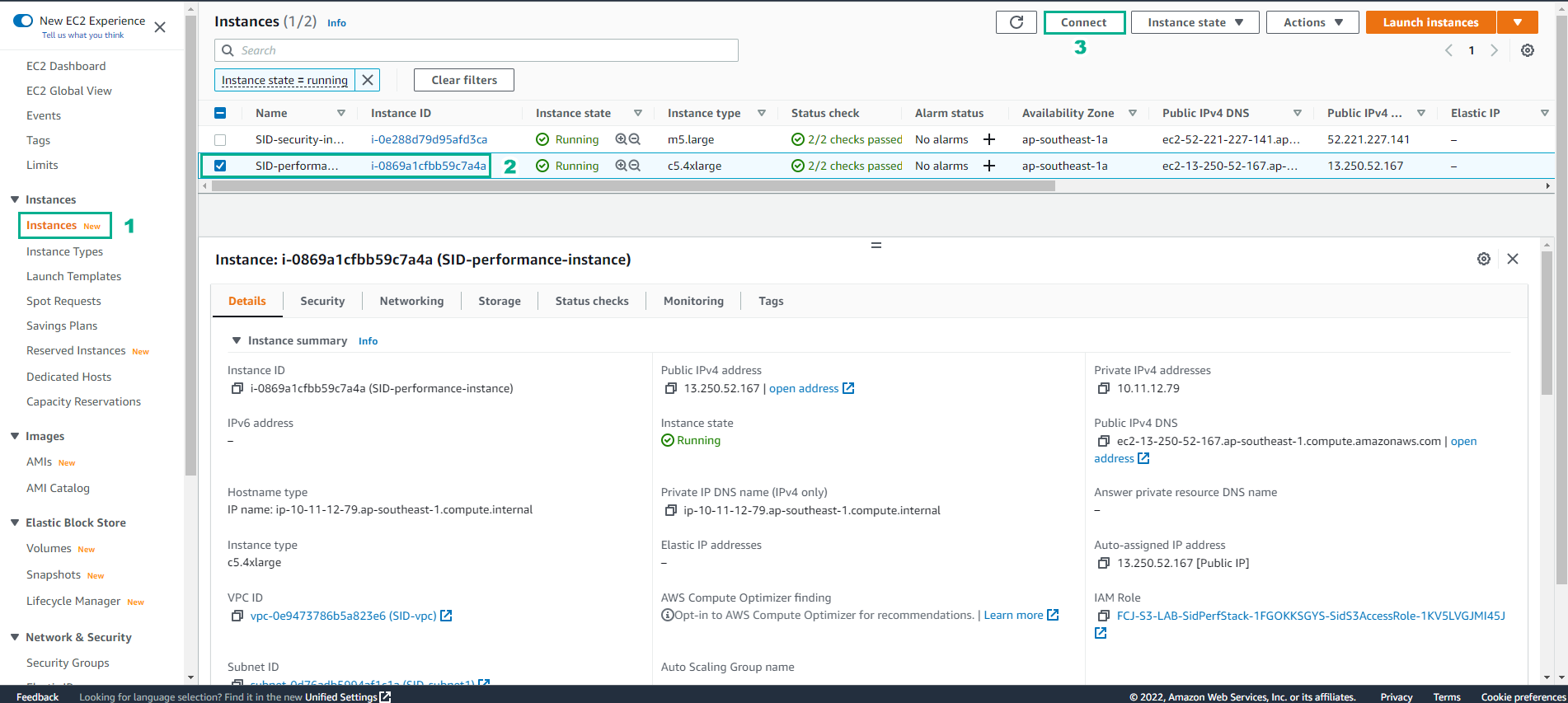
After configuring the Security Group, begin connecting to EC2.- Navigate to the EC2 interface and select Instances.
- Choose the SID-performance-instance.
- Click on Connect.
-
Using the Connect to Instance Interface
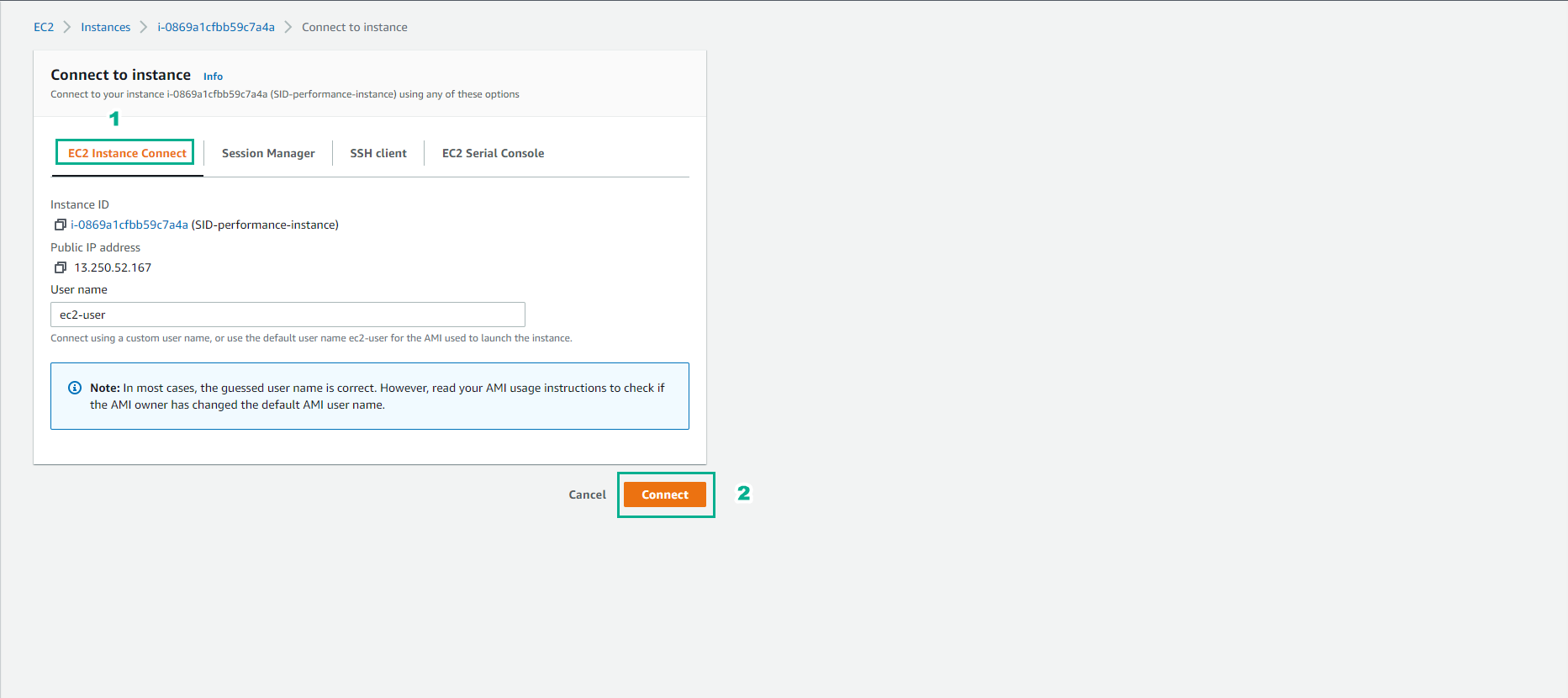
- Choose EC2 Instance Connection.
- Click on Connect.
-
Successful EC2 Connection
The connection to EC2 is now established.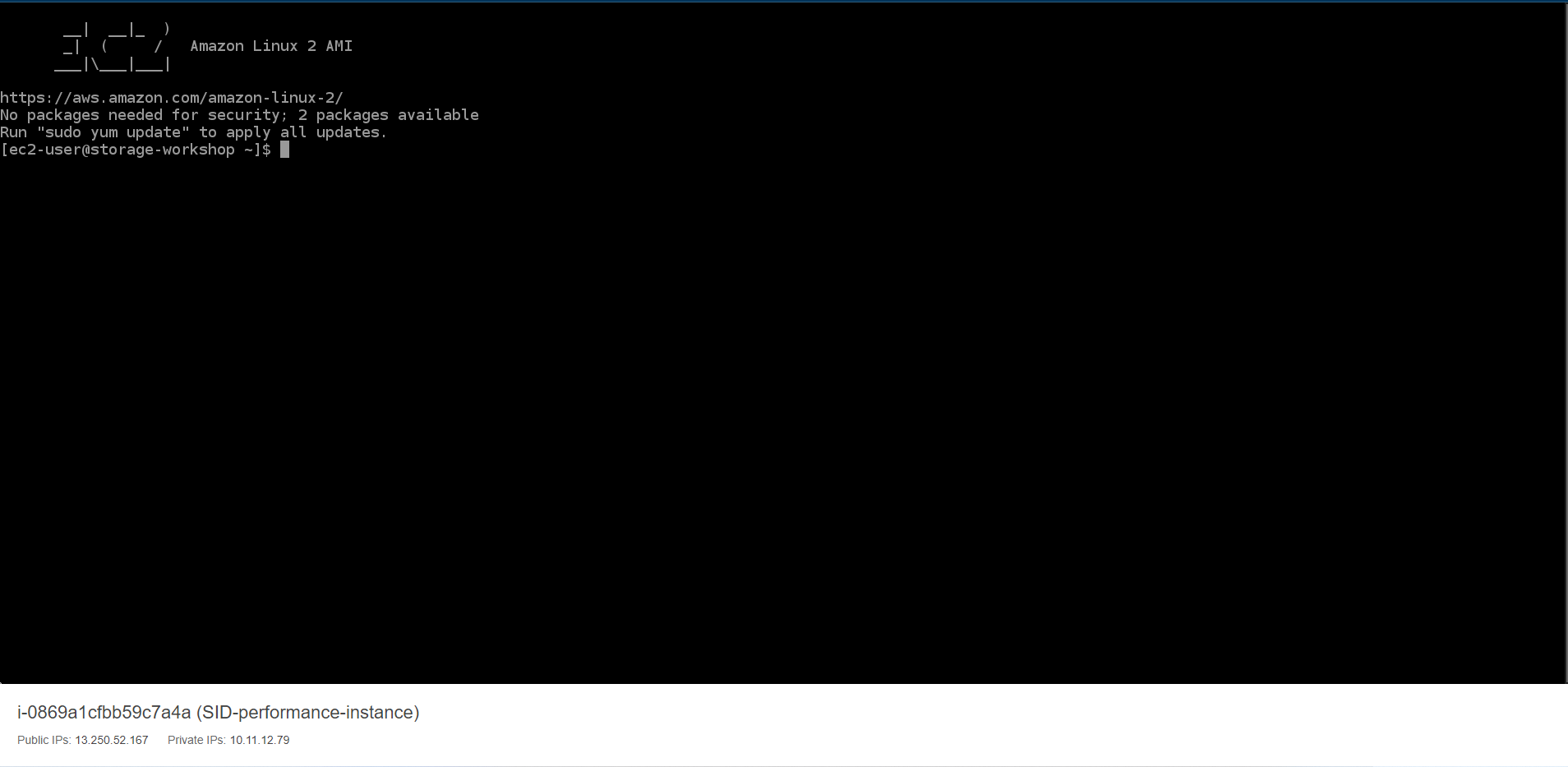
-
Creating an Access Key After EC2 Connection
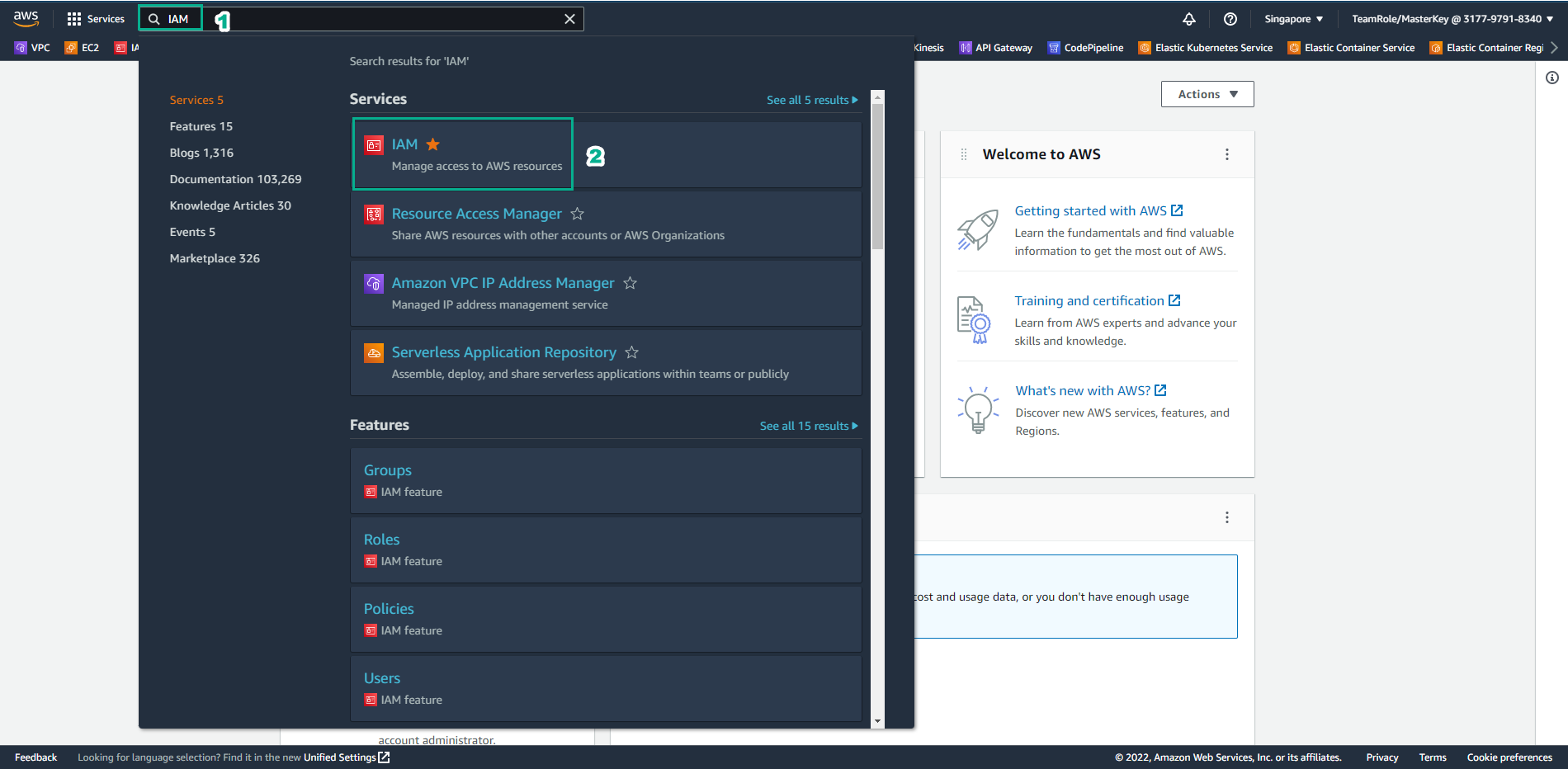
Post successful EC2 connection, proceed to create an Access Key for AWS CLI configuration.- Go to IAM.
-
Navigating the IAM Interface
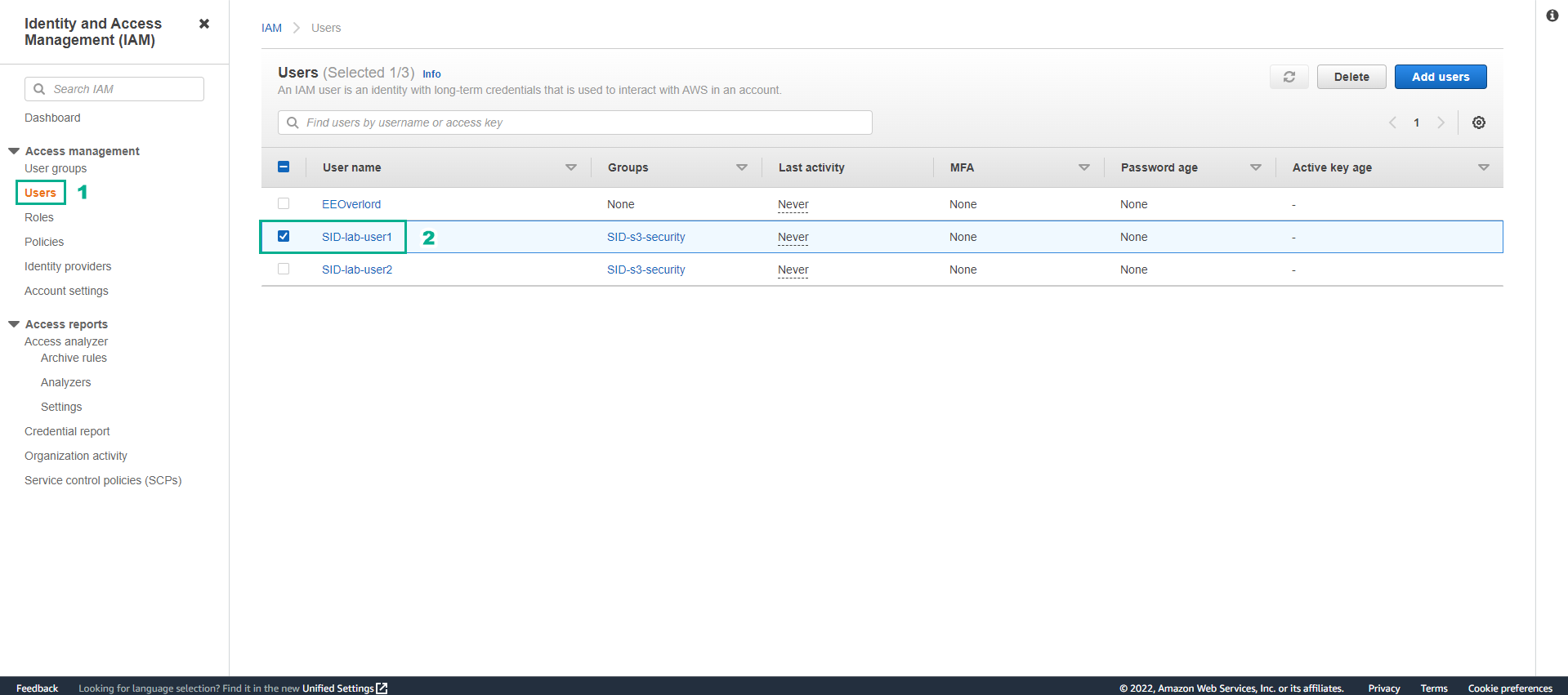
- Select Users.
- Choose SID-lab-user1.
-
In the User Interface
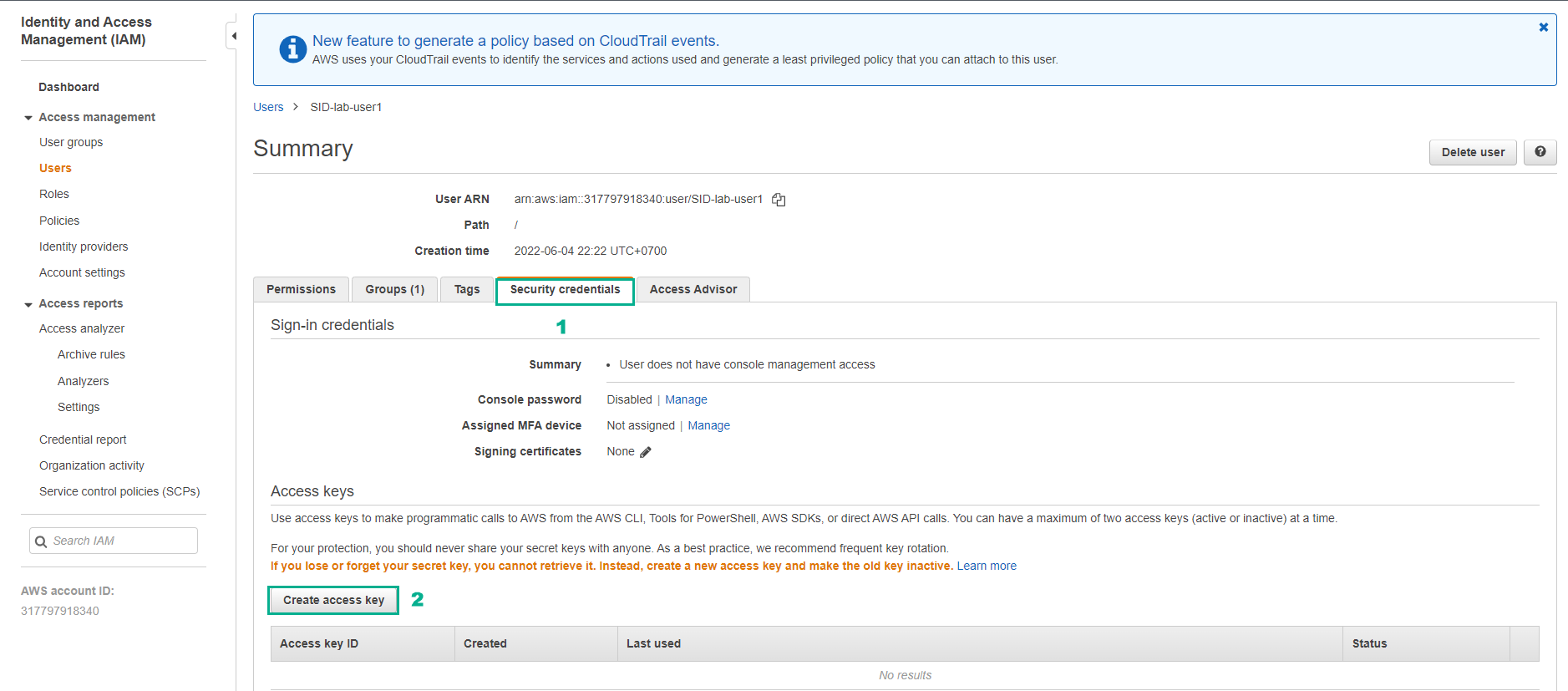
- Click on Security credentials.
- Select Create access key.
-
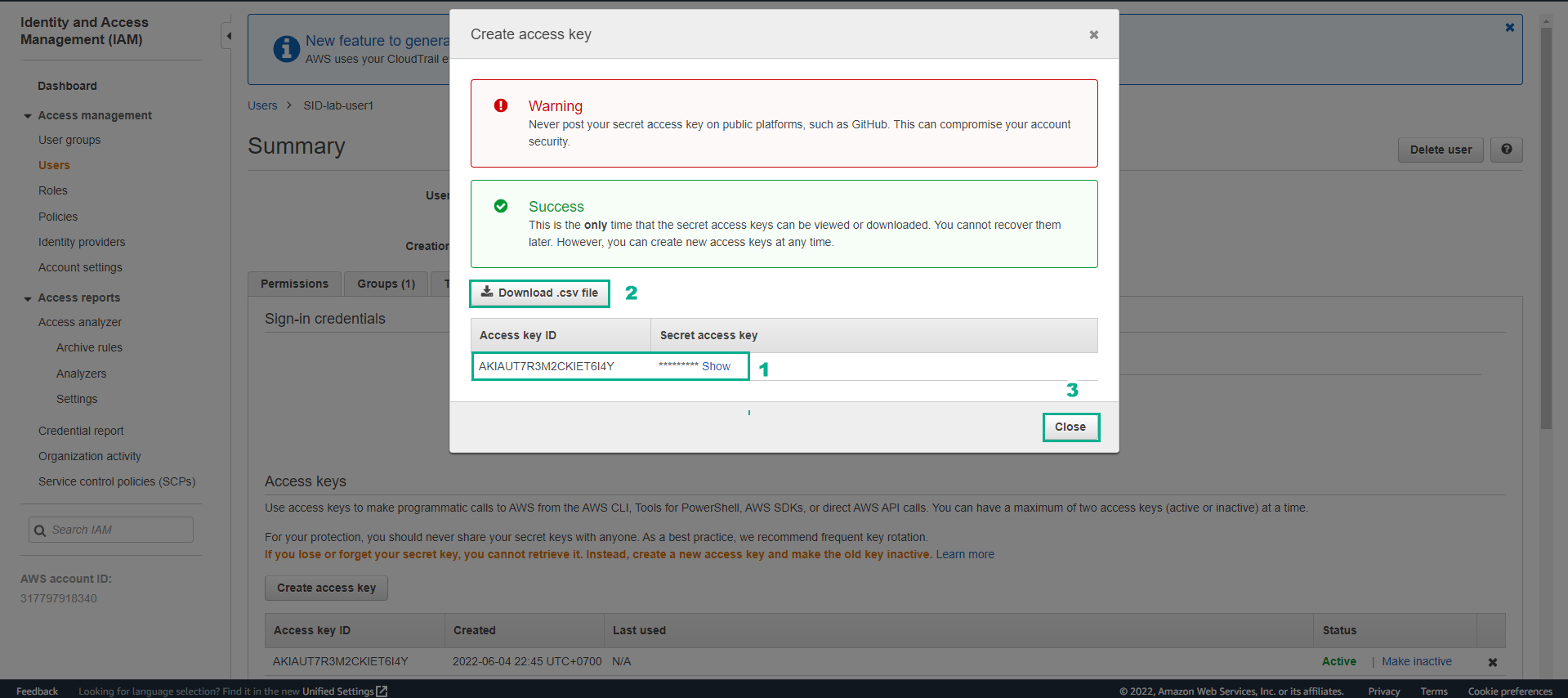
Upon Successfully Creating an Access Key
- Choose to Download .csv file.
- Click Close.
-
Entering Commands in the SSH Interface
Enter the following command:
aws configure
- Continue with the configuration using the information from the downloaded csv file.
